 TechDevs
"My computer is slow" might be the most common tech complaint in the world, and the most common response — "just format it" — is the tech equivalent of burning down the house because the kitchen is untidy. Formatting sometimes helps, but usually for reasons that a ten-minute fix would have handled without you losing your files and programs.
Here are the real causes, in the order you should check them. The first three cost nothing.
1. Too many programs starting with Windows (free, 5 minutes)
Every program that launches at startup sits in memory forever after. Updaters, "helpers," that app you installed once in 2023 — they pile up quietly over the years.
Press Ctrl + Shift + Esc to open Task Manager, go to the Startup apps tab, and disable everything you don't need running from the moment the machine boots. Skype doesn't need to greet you at startup. Neither does anything with "updater" in the name. Restart and feel the difference — on older machines this alone is dramatic.
2. A nearly-full drive (free, 15 minutes)
Windows needs breathing room on the system drive. When drive C: passes roughly 90% full, everything gets slower — Windows uses free disk space as overflow when memory runs out.
Open Settings → System → Storage and see what's eating the space. The usual suspects: the Downloads folder (an archaeological site on most computers), old Windows update files (use Storage Sense or Disk Cleanup), and videos people forgot they had. Get meaningfully below 90% and stay there.
3. Malware and "free download" leftovers (free, 30 minutes)
If the machine slowed down suddenly rather than gradually, or the browser has toolbars you didn't ask for, this is likely. Free software downloads from the wrong sites bundle junk that runs constantly in the background.
Run a full scan with Windows Defender (built in, and genuinely decent now — you don't need to buy an antivirus). Then check Settings → Apps and uninstall anything you don't recognise and didn't choose. Search unfamiliar names first; some system entries look strange but belong.
4. The hard disk (the big one — costs money, transforms the machine)
Here's the honest truth about older computers: if it has a spinning hard disk (HDD), that is why it's slow, and no amount of cleaning will fix it. A mechanical disk physically cannot feed a modern operating system fast enough.
Replacing an HDD with an SSD is the single best upgrade in computing. Boot time drops from minutes to seconds; programs open instantly. It routinely makes a 7-year-old laptop feel newer than a budget machine from this year, for a fraction of replacement cost. Any decent repair shop can do the swap and copy your Windows across in an afternoon.
How to check what you have: Task Manager → Performance tab → click the disk — it says HDD or SSD right there.
5. Not enough RAM (costs money, easy to check)
Open Task Manager's Performance tab while working normally. If memory sits above 85–90% constantly, the machine is drowning. With 4GB in 2026, it definitely is — see if the laptop takes a second RAM stick (most do) and go to 8GB minimum.
What doesn't work
Save your money and time on these: "PC cleaner" and "RAM booster" apps (they cause more problems than they solve, and several are outright scams), registry cleaners (measurable benefit: none), and reformatting as a first resort (it works mainly because it accidentally does steps 1–3 — which you can do without losing everything).
The order, one more time
Startup programs → disk space → malware scan → SSD → RAM. Free fixes first, then the upgrade that actually matters. Work through that list before anyone convinces you the machine is "finished" — most slow computers have years left in them.
Related articles
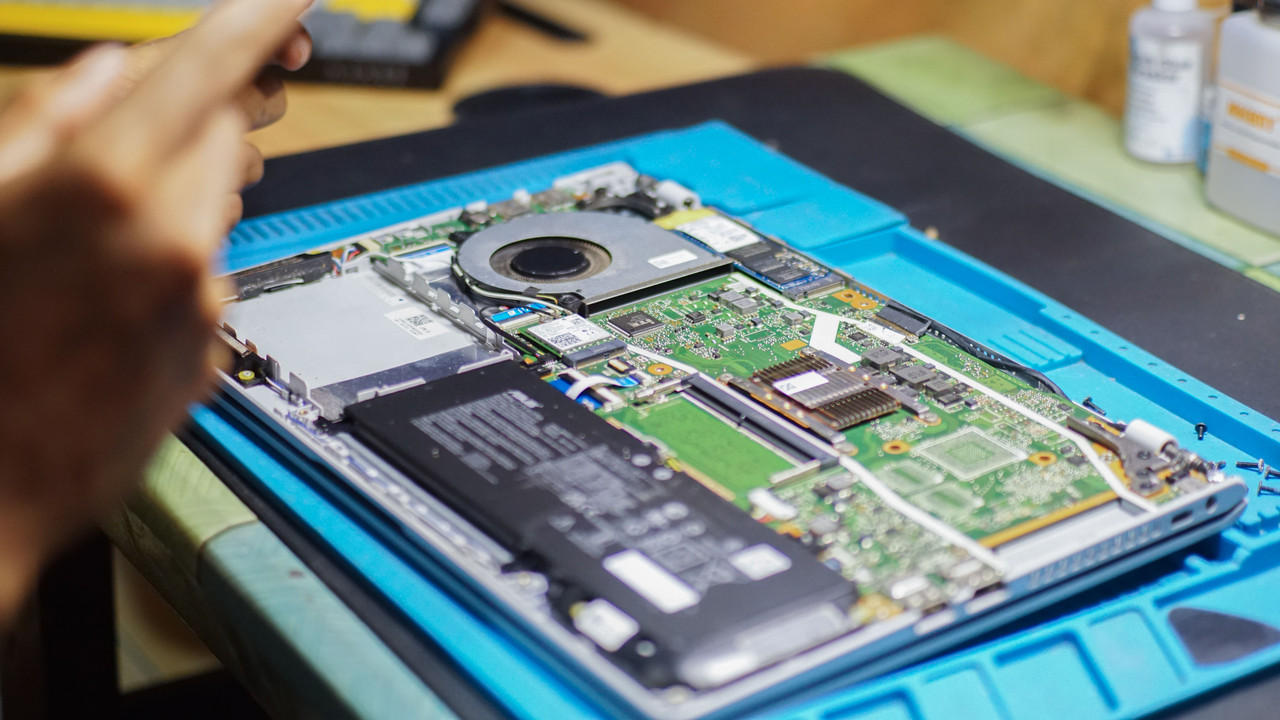
Make your batteries last: the simple rules for phones and laptops
Batteries are the most expensive part of a device to replace — and the most mistreated. These five rules make yours last years longer, free.
How accounts really get hacked — and the 20-minute setup that stops it
Hackers almost never 'guess' your password. Here's how accounts are actually stolen — phishing, reused passwords, WhatsApp code tricks — and the short setup that blocks nearly all of it.
How the internet actually reaches your phone: the journey of a single tap
Between your thumb and the page that loads is a chain of radio, fibre and undersea cable most people never think about. Understanding it explains why data costs what it does — and why some sites feel faster.
Get notified when there's something new
No spam — just a quick email when a useful article or tool launches. Unsubscribe any time.